JavaScript
What is JavaScript
JavaScript is a programming language initially designed to interact with elements of web pages. Within web browsers, JavaScript consists of three main parts:
ECMAScript provides the core functionality.
The Document Object Model (DOM) provides interfaces for interacting with elements on web pages.
The Browser Object Model (BOM) provides the browser API for interacting with the web browser.
JavaScript allows you to add interactivity to a web page. Typically, you use JavaScript with HTML and CSS to enhance a web page’s functionality, such as validating forms, creating interactive maps, and displaying animated charts.
When a web page is loaded, i.e., after HTML and CSS have been downloaded, the JavaScript engine in the web browser executes the JavaScript code. The JavaScript code then modifies the HTML and CSS to update the user interface dynamically.
The JavaScript engine is a component of web browsers responsible for interpreting and executing JavaScript code. It includes a parser to analyze the code, a compiler to convert it into machine code, and an interpreter to run the compiled code.
Notable JavaScript engines include V8 in Chrome, SpiderMonkey in Firefox, and JavaScriptCore in Safari.
Initially, JavaScript engines were implemented as interpreters. However, modern JavaScript engines are commonly implemented as just-in-time compilers that compile JavaScript code to bytecode for improved performance.
Client-side vs. Server-side JavaScript
When JavaScript is used on a web page, it is executed in web browsers, serving as a client-side language.
JavaScript can run on both web browsers and servers. A popular JavaScript server-side environment is Node.js. Unlike client-side JavaScript, server-side JavaScript executes on the server and allows you to access databases, file systems, etc.
JavaScript History
In 1995, JavaScript was developed by Brendan Eich, a Netscape developer. Initially named Mocha, it was later renamed to LiveScript.
Netscape decided to rebrand LiveScript to JavaScript to capitalize on the popularity of Java. The decision was made shortly before the release of Netscape Navigator 2 web browser, leading to the introduction of JavaScript version 1.0.
Netscape launched JavaScript 1.1 in Netscape Navigator 3. In the meantime, Microsoft introduced its web browser called Internet Explorer 3 (IE 3) as a competitor to Netscape. However, IE featured its own JavaScript implementation called JScript. Microsoft used the name JScript to avoid potential licensing conflicts with Netscape.
Hence, two distinct versions of JavaScript were in the market:
JavaScript in Netscape Navigator
JScript in Internet Explorer.
At this time, JavaScript lacked standardized syntax and features, prompting the community to advocate for the standardization of the language.
In 1997, JavaScript 1.1 was proposed to the European Computer Manufacturers Association (ECMA) as a proposal. Technical Committee #39 (TC39) was assigned the task of standardizing the language, maiming to transform it into a general-purpose, cross-platform, and vendor-neutral scripting language.
TC39 came up with ECMA-262, establishing a standard for defining a new scripting language called ECMAScript (often pronounced Ek-ma-script).
Following that, the International Organization for Standardization and International Electrotechnical Commissions (ISO/IEC) adopted ECMAScript (ISO/IEC-16262).
JavaScript overview
Note that the following section offers a solid introduction to JavaScript code. If you’re not yet familiar with it, that’s perfectly fine. You’ll have the opportunity to learn in the upcoming tutorial.
To define a variable in JavaScript, you use var keyword. For example:
var x = 10;
var y = 20;
ES6 added a new way to declare a variable with the let keyword:
let x = 10;
let y = 20;
There are differences between var and let. And it’s a good practice to use the let keyword to declare variables.
To declare a function, you use the function keyword. The following example defines a function that calculates the sum of two arguments:
function add( a, b ) {
   return a + b;
}
To call the add() function, you use the following syntax:
let result = add(x, y);
To log the result into the console window of the web browser or terminal (in the case of node.js), you use the console.log() function:
console.log(result);
Now, you should see 30 in the output.
JavaScript provides you with condition statements such as if-else and switch statements. For example:
let a = 20,
    b = 30;

function divide(a, b) {
    if(b == 0) {
       throw 'Division by zero';
    }
    return a / b;
}
In the divide() function, we check whether the de-numerator (b) is zero. If yes, we throw an exception. Otherwise, we return the result of a / b.
To declare an array, you use the following syntax:
let items = [];
To declare an array with initial elements, you specify those elements within the square brackets:
let items = [1, 2, 3];
You can access the number of elements in the items array through its length property:
console.log(items.length); // 3
To iterate over the elements of the items array, you use the for loop statement as follows:
for(let i = 0; i < items.length; i++) {
    console.log(items[i]);
}
Alternatively, you can use the for...of loop in ES6:
for(let item of items) {
    console.log(item);
}
JavaScript Syntax
JavaScript Variables
JavaScript Data Types
Summary: in this tutorial, you will learn about JavaScript data types and their unique characteristics.
JavaScript has the primitive data types:
and a complex data type object.
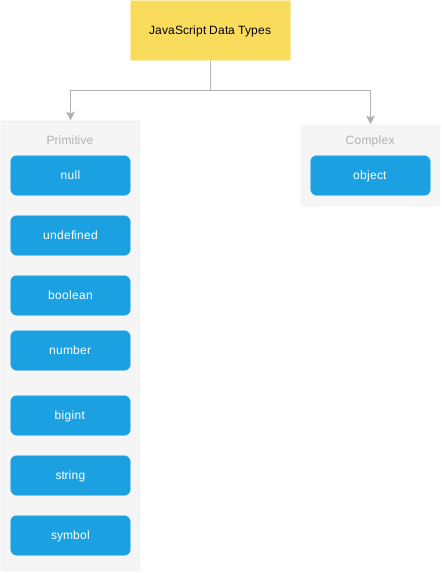
JavaScript is a dynamically typed language, meaning that a variable isn’t associated with a specific type. In other words, a variable can hold a value of different types. For example:
let counter = 120; // counter is a number
counter = false;   // counter is now a boolean
counter = "foo";   // counter is now a string
To determine the current type of the value stored in a variable, you use the typeof operator:
let counter = 120;
console.log(typeof(counter)); // "number"

counter = false;
console.log(typeof(counter)); // "boolean"

counter = "Hi";
console.log(typeof(counter)); // "string"
Output:
"number"
"boolean"
"string"
The undefined type
The undefined type is a primitive type that has only one value undefined. By default, when a variable is declared but not initialized, it defaults to undefined.
Consider the following example:
let counter;
console.log(counter);        // undefined
console.log(typeof counter); // undefined
In this example, the counter is a variable. Since counter hasn’t been initialized, it is assigned the value undefined. The type of counter is also undefined.
It’s important to note that the typeof operator also returns undefined when you call it on a variable that hasn’t been declared:
console.log(typeof undeclaredVar); // undefined
The null type
The null type is the second primitive data type that also has only one value null. For example:
let obj = null;
console.log(typeof obj); // object
The typeof null returns object is a known bug in JavaScript. A proposal to fix was rejected due to the potential to break many existing sites.
JavaScript defines that null is equal to undefined as follows:
console.log(null == undefined); // true
The number type
JavaScript uses the number type to represent both integer and floating-point numbers.
The following statement declares a variable and initializes its value with an integer:
let num = 100;
To represent a floating-point number, you include a decimal point followed by at least one number. For example:
let price = 12.5;
let discount = 0.05;
Note that JavaScript automatically converts a floating-point number into an integer if the number appears to be a whole number.
The reason is that Javascript always wants to use less memory since a floating-point value uses twice as much memory as an integer value. For example:
let price = 200.00; // interpreted as an integer 200
To get the range of the number type, you use Number.MIN_VALUE and Number.MAX_VALUE. For example:
console.log(Number.MAX_VALUE); // 1.7976931348623157e+308
console.log(Number.MIN_VALUE); // 5e-324
Also, you can use Infinity and -Infinity to represent the infinite number. For example:
console.log(Number.MAX_VALUE + Number.MAX_VALUE); // Infinity
console.log(-Number.MAX_VALUE - Number.MAX_VALUE); // -Infinity
NaN
NaN stands for Not a Number. It is a special numeric value that indicates an invalid number. For example, the division of a string by a number returns NaN:.
console.log('a'/2); // NaN;
The NaN has two special characteristics:
Any operation with
NaNreturnsNaN.The
NaNdoes not equal any value, including itself.
Here are some examples:
console.log(NaN/2); // NaN
console.log(NaN == NaN); // false
The string type
In JavaScript, a string is a sequence of zero or more characters. A string literal begins and ends with either a single quote(') or a double quote (").
A string that begins with a double quote must end with a double quote, and a string that begins with a single quote must also end with a single quote. For example:
let greeting = 'Hi';
let message  = "Bye";
If you want to use single quotes or double quotes in a literal string, you need to use the backslash to escape them. For example:
let message = 'I\'m also a valid string'; // use \ to escape the single quote (')
JavaScript strings are immutable, meaning that they cannot be modified once created. However, you can create a new string from an existing one. For example:
let str = 'JavaScript';
str = str + ' String';
In this example:
First, declare the
strvariable and initialize it to a string of'JavaScript'.Second, use the
+operator to combine'JavaScript'with' String'to make its value as'Javascript String'.
Behind the scene, the JavaScript engine creates a new string that holds the new string 'JavaScript String' and destroys the original strings 'JavaScript' and ' String'.
The following example attempts to modify the first character of the string JavaScript:
let s = 'JavaScript';
s[0] = 'j';
console.log(s);
The output is:
'JavaScript'
But not:
'javaScript'
The boolean type
The boolean type has two literal values: true and false in lowercase. The following example declares two variables that hold the boolean values.
let inProgress = true;
let completed = false;

console.log(typeof completed); // boolean
JavaScript allows values of other types to be converted into boolean values of true or false.
To convert values of other types into boolean values, you use the Boolean() function.
The following table displays the conversion rules:
| Type | true | false |
| string | non-empty string | empty string |
| number | non-zero number and Infinity | 0, NaN |
| object | non-null object | null |
| undefined | undefined |
For example:
console.log(Boolean('Hi'));// true
console.log(Boolean(''));  // false

console.log(Boolean(20));  // true
console.log(Boolean(Infinity));  // true
console.log(Boolean(0));  // false

console.log(Boolean({foo: 100}));  // true on non-empty object
console.log(Boolean(null));// false
The symbol type
JavaScript introduced a new primitive type in ES6: the symbol. Unlike other primitive types, the symbol type does not have a literal form.
To create a symbol, you call the Symbol function as follows:
let s1 = Symbol();
The Symbol function creates a new unique value every time you call it.
console.log(Symbol() == Symbol()); // false
Note that you’ll learn more about symbols in the symbol tutorial.
The bigint type
The bigint type represents the whole numbers that are larger than 253 – 1. To form a bigint literal number, you append the letter n at the end of the number:
let pageView = 9007199254740991n;
console.log(typeof(pageView)); // 'bigint'
And you’ll learn more about the bigint type here.
The object type
In JavaScript, an object is a collection of properties, where each property is defined as a key-value pair.
The following example defines an empty object using the object literal syntax:
let emptyObject = {};
The following example defines the person object with two properties: firstName and lastName.
let person = {
    firstName: 'John',
    lastName: 'Doe'
};
A property name of an object can be any string. You can use quotes around the property name if it is not a valid identifier.
For example, if the person object has a property first-name, you must place it in the quotes such as "first-name".
A property of an object can hold an object. For example:
let contact = {
    firstName: 'John',
    lastName: 'Doe',
    email: 'john.doe@example.com',
    phone: '(408)-555-9999',
    address: {
        building: '4000',
        street: 'North 1st street',
        city: 'San Jose',
        state: 'CA',
        country: 'USA'
    }
}
The contact object has the firstName, lastName, email, phone, and address properties.
The address property itself holds an object that has building, street, city, state, and country properties.
To access an object’s property, you can use
The dot notation (
.)The array-like notation (
[]).
The following example uses the dot notation (.) to access the firstName and lastName properties of the contact object.
console.log(contact.firstName);
console.log(contact.lastName);
If you reference a property that does not exist, you’ll get an undefined value. For example:
console.log(contact.age); // undefined
The following example uses the array-like notation to access the email and phone properties of the contact object.
console.log(contact['phone']); // '(408)-555-9999'
console.log(contact['email']); // 'john.doe@example.com'
Summary
- JavaScript has the primitive types:
number,string,boolean,null,undefined,symbolandbigintand a complex type:object.
JavaScript Arrays
Summary: in this tutorial, you’ll learn about JavaScript arrays and their basic operations.
Introduction to JavaScript arrays
In JavaScript, an array is an ordered list of values. Each value is called an element specified by an index:
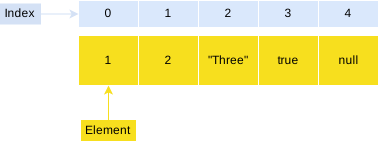
A JavaScript array has the following characteristics:
First, an array can hold values of mixed types. For example, you can have an array that stores elements with the types number, string, boolean, and null.
Second, the size of an array is dynamic and auto-growing. In other words, you don’t need to specify the array size up front.
Creating JavaScript arrays
JavaScript provides you with two ways to create an array. The first one is to use the Array constructor as follows:
let scores = new Array();Code language: JavaScript (javascript)
The scores array is empty, which does hold any elements.
If you know the number of elements that the array will hold, you can create an array with an initial size as shown in the following example:
let scores = Array(10);Code language: JavaScript (javascript)
To create an array and initialize it with some elements, you pass the elements as a comma-separated list into the Array() constructor.
For example, the following creates the scores array that has five elements (or numbers):
let scores = new Array(9, 10, 8, 7, 6);Code language: JavaScript (javascript)
Note that if you use the Array() constructor to create an array and pass a number into it, you are creating an array with an initial size.
However, when you pass a value of another type like string into the Array() constructor, you create an array with an element of that value. For example:
let athletes = new Array(3); // creates an array with initial size 3
let scores = new Array(1, 2, 3); // create an array with three numbers 1,2 3
let signs = new Array('Red'); // creates an array with one element 'Red'Code language: JavaScript (javascript)
JavaScript allows you to omit the new operator when using the Array() constructor. For example, the following statement creates the artists array.
let artists = Array();Code language: JavaScript (javascript)
In practice, you’ll rarely use the Array() constructor to create an array.
The more preferred way to create an array is to use the array literal notation:
let arrayName = [element1, element2, element3, ...];Code language: JavaScript (javascript)
The array literal form uses the square brackets [] to wrap a comma-separated list of elements.
The following example creates the colors array that holds string elements:
let colors = ['red', 'green', 'blue'];Code language: JavaScript (javascript)
To create an empty array, you use square brackets without specifying any element like this:
let emptyArray = [];Code language: JavaScript (javascript)
Accessing JavaScript array elements
JavaScript arrays are zero-based indexed. In other words, the first element of an array starts at index 0, the second element starts at index 1, and so on.
To access an element in an array, you specify an index in the square brackets []:
arrayName[index]Code language: CSS (css)
The following shows how to access the elements of the mountains array:
let mountains = ['Everest', 'Fuji', 'Nanga Parbat'];

console.log(mountains[0]); // 'Everest'
console.log(mountains[1]); // 'Fuji'
console.log(mountains[2]); // 'Nanga Parbat'Code language: JavaScript (javascript)
To change the value of an element, you assign that value to the element like this:
let mountains = ['Everest', 'Fuji', 'Nanga Parbat'];
mountains[2] = 'K2';

console.log(mountains);Code language: JavaScript (javascript)
Output:
[ 'Everest', 'Fuji', 'K2' ]Code language: JSON / JSON with Comments (json)
Getting the array size
Typically, the length property of an array returns the number of elements. The following example shows how to use the length property:
let mountains = ['Everest', 'Fuji', 'Nanga Parbat'];
console.log(mountains.length); // 3Code language: JavaScript (javascript)
Basic operations on arrays
The following explains some basic operations on arrays. You’ll learn advanced operations such as map(), filter(), and reduce() in the next tutorials.
1) Appending an element to an array
To add an element to the end of an array, you use the push() method:
let seas = ['Black Sea', 'Caribbean Sea', 'North Sea', 'Baltic Sea'];
seas.push('Red Sea');

console.log(seas); Code language: JavaScript (javascript)
Output:
[ 'Black Sea', 'Caribbean Sea', 'North Sea', 'Baltic Sea', 'Red Sea' ]Code language: JSON / JSON with Comments (json)
2) Adding an element to the beginning of an array
To add an element to the beginning of an array, you use the unshift() method:
let seas = ['Black Sea', 'Caribbean Sea', 'North Sea', 'Baltic Sea'];
seas.unshift('Red Sea');

console.log(seas);Code language: JavaScript (javascript)
Output:
[ 'Red Sea', 'Black Sea', 'Caribbean Sea', 'North Sea', 'Baltic Sea' ]Code language: JSON / JSON with Comments (json)
3) Removing an element from the end of an array
To remove an element from the end of an array, you use the pop() method:
let seas = ['Black Sea', 'Caribbean Sea', 'North Sea', 'Baltic Sea'];
const lastElement = seas.pop();
console.log(lastElement); Code language: JavaScript (javascript)
Output:
Baltic Sea
4) Removing an element from the beginning of an array
To remove an element from the beginning of an array, you use the shift() method:
let seas = ['Black Sea', 'Caribbean Sea', 'North Sea', 'Baltic Sea'];
const firstElement = seas.shift();

console.log(firstElement);Code language: JavaScript (javascript)
Output:
Black Sea
5) Finding an index of an element in the array
To find the index of an element, you use the indexOf() method:
let seas = ['Black Sea', 'Caribbean Sea', 'North Sea', 'Baltic Sea'];
let index = seas.indexOf('North Sea');

console.log(index); // 2Code language: JavaScript (javascript)
6) Check if a value is an array
To check if a value is an array, you use Array.isArray() method:
console.log(Array.isArray(seas)); // trueCode language: JavaScript (javascript)
Summary
In JavaScript, an array is an order list of values; each value is called an element specified by an index.
An array can hold values of mixed types.
JavaScript arrays are dynamic, which means that they grow or shrink as needed.
JavaScript Functions
JavaScript Functions
Summary: in this tutorial, you will learn about JavaScript functions and how to use them to structure the code into smaller and more reusable units.
Introduction to JavaScript functions
When developing an application, you often need to perform the same action in many places. For example, you may want to show a message whenever an error occurs.
To avoid repeating the same code all over places, you can use a function to wrap that code and reuse it.
JavaScript provides many built-in functions such as parseInt() and parseFloat(). In this tutorial, you will learn how to develop custom functions.
Declaring a function
To declare a function, you use the function keyword, followed by the function name, a list of parameters, and the function body as follows:
function functionName(parameters) {
    // function body
    // ...
}Code language: JavaScript (javascript)
The function name must be a valid JavaScript identifier. By convention, the function names are in camelCase and start with verbs like getData(), fetchContents(), and isValid().
A function can accept zero, one, or multiple parameters. In the case of multiple parameters, you need to use a comma to separate two parameters.
The following declares a function say() that accepts no parameter:
function say() {
}Code language: JavaScript (javascript)
The following declares a function named square() that accepts one parameter:
function square(a) {
}Code language: JavaScript (javascript)
The following declares a function named add() that accepts two parameters:
function add(a, b) {
}Code language: JavaScript (javascript)
Inside the function body, you can write the code to implement an action.
For example, the following say() function shows a message to the console:
function say(message) {
  console.log(message);
}Code language: JavaScript (javascript)
In the body of the say() function, we call the console.log() function to output a message to the console.
Calling a function
To use a function, you need to call it. Calling a function is also known as invoking a function.
To call a function, you use its name followed by arguments enclosed in parentheses like this:
functionName(arguments);Code language: JavaScript (javascript)
When calling a function, JavaScript executes the code inside the function body. For example, the following shows how to call the say() function:
say('Hello');Code language: JavaScript (javascript)
In this example, we call the say() function and pass a literal string 'Hello' into it.
Parameters vs. Arguments
The terms parameters and arguments are often used interchangeably. However, they are essentially different.
When declaring a function, you specify the parameters. However, when calling a function, you pass the arguments corresponding to the parameters.
For example, in the say() function, the message is the parameter and the 'Hello' string is an argument that corresponds to the message parameter.
Returning a value
Every function in JavaScript implicitly returns undefined unless you explicitly specify a return value. For example:
function say(message) {
  console.log(message);
}

let result = say('Hello');
console.log('Result:', result);Code language: JavaScript (javascript)
Output:
Hello
Result: undefinedCode language: JavaScript (javascript)
To specify a return value for a function, you use the return statement followed by an expression or a value, like this:
return expression;Code language: JavaScript (javascript)
For example, the following add() function returns the sum of the two arguments:
function add(a, b) {
    return a + b;
}Code language: JavaScript (javascript)
The following shows how to call the add() function:
let sum = add(10, 20);
console.log('Sum:', sum);Code language: JavaScript (javascript)
Output:
Sum: 30Code language: JavaScript (javascript)
The following example uses multiple return statements in a function to return different values based on conditions:
function compare(a, b) {
    if (a > b) {
        return -1;
    } else if (a < b) {
        return 1;
    }
    return 0;
}Code language: JavaScript (javascript)
The compare() function compares two values. It returns:
-1 if the first argument is greater than the second one.
1 if the first argument is less than the second one.
0 if the first argument equals the second one.
The function immediately stops executing when it reaches the return statement. Therefore, you can use the return statement without a value to exit the function prematurely, like this:
function say(message) {
  // show nothing if the message is empty
  if (!message) {
    return;
  }
  console.log(message);
}Code language: JavaScript (javascript)
In this example, if the message is blank (or undefined), the say() function will show nothing.
The function can return a single value. If you want to return multiple values from a function, you need to pack these values in an array or an object.
The arguments object
Inside a function, you can access an object called arguments that represents the named arguments of the function.
The arguments object behaves like an array though it is not an instance of the Array type.
For example, you can use the square bracket [] to access the arguments: arguments[0] returns the first argument, arguments[1] returns the second one, and so on.
You can also use the length property of the arguments object to determine the number of arguments.
The following example implements a generic add() function that calculates the sum of any number of arguments.
function add() {
  let sum = 0;
  for (let i = 0; i < arguments.length; i++) {
    sum += arguments[i];
  }
  return sum;
}Code language: JavaScript (javascript)
Hence, you can pass any number of arguments to the add() function, like this:
console.log(add(1, 2)); // 3
console.log(add(1, 2, 3, 4, 5)); // 15Code language: JavaScript (javascript)
Function hoisting
In JavaScript, you can use a function before declaring it. For example:
showMe(); // a hoisting example

function showMe() {
  console.log('an hoisting example');
}Code language: JavaScript (javascript)
This feature is called hoisting.
Function hoisting is a mechanism in which the JavaScript engine physically moves function declarations to the top of the code before executing them.
The following shows the version of the code before the JavaScript engine executes it:
function showMe() {
  console.log('a hoisting example');
}

showMe(); // a hoisting exampleCode language: JavaScript (javascript)
Function hoisting allows you to call a function before declaring it, making the development workflow more smoothly.
Summary
Use the
functionkeyword to declare a function.Use the
functionName()to call a function.All functions implicitly return
undefinedif they don’t explicitly return a value.Use the
returnstatement to return a value from a function explicitly.The
argumentsvariable is an array-like object inside a function, representing function arguments.The function hoisting allows you to call a function before declaring it.
JAVASCRIPT OBJECTS
Javascript Object Methods
Summary: in this tutorial, you’ll learn about JavaScript object methods and how to define methods for an object.
Introduction to the JavaScript object methods
An object is a collection of key/value pairs or properties. When the value is a function, the property becomes a method. Typically, you use methods to describe the object’s behaviors.
For example, the following adds the greet method to the person object:
let person = {
    firstName: 'John',
    lastName: 'Doe'
};

person.greet = function () {
    console.log('Hello!');
}

person.greet();Code language: JavaScript (javascript)
Output:
Hello!
In this example:
First, use a function expression to define a function and assign it to the
greetproperty of thepersonobject.Then, call the method
greet()method.
Besides using a function expression, you can define a function and assign it to an object like this:
let person = {
    firstName: 'John',
    lastName: 'Doe'
};

function greet() {
    console.log('Hello, World!');
}

person.greet = greet;

person.greet();Code language: JavaScript (javascript)
In this example:
First, define the
greet()function as a regular function.Second, assign the function name to the
greetproperty of thepersonobject.Third, call the
greet()method.
Object method shorthand
JavaScript allows you to define methods of an object using the object literal syntax as shown in the following example:
let person = {
    firstName: 'John',
    lastName: 'Doe',
    greet: function () {
        console.log('Hello, World!');
    }
};
Code language: JavaScript (javascript)
ES6 provides you with the concise method syntax that allows you to define a method for an object:
let person = {
    firstName: 'John',
    lastName: 'Doe',
    greet() {
        console.log('Hello, World!');
    }
};

person.greet();Code language: JavaScript (javascript)
This syntax looks much cleaner and less verbose.
The this value
Typically, methods need to access other properties of the object.
For example, you may want to define a method that returns the full name of the person object by concatenating the first name and last name.
Inside a method, the this value references the object that invokes the method. Therefore, you can access a property using the this value as follows:
this.propertyNameCode language: JavaScript (javascript)
The following example uses the this value in the getFullName() method:
let person = {
    firstName: 'John',
    lastName: 'Doe',
    greet: function () {
        console.log('Hello, World!');
    },
    getFullName: function () {
        return this.firstName + ' ' + this.lastName;
    }
};


console.log(person.getFullName());Code language: JavaScript (javascript)
Output
'John Doe'Code language: JavaScript (javascript)
- When a function is a property of an object, it becomes a method.
JavaScript Constructor Function
Summary: in this tutorial, you’ll learn about the JavaScript constructor function and how to use the new keyword to create an object.
Introduction to JavaScript constructor functions
In the JavaScript objects tutorial, you learned how to use the object literal syntax to create a new object.
For example, the following creates a new person object with two properties firstName and lastName:
let person = {
    firstName: 'John',
    lastName: 'Doe'
};Code language: JavaScript (javascript)
In practice, you often need to create many similar objects like the person object.
To do that, you can use a constructor function to define a custom type and the new operator to create multiple objects from this type.
Technically speaking, a constructor function is a regular function with the following convention:
The name of a constructor function starts with a capital letter like
Person,Document, etc.A constructor function should be called only with the
newoperator.
Note that ES6 introduces the class keyword that allows you to define a custom type. Classes are just syntactic sugar over the constructor functions with some enhancements.
The following example defines a constructor function called Person:
function Person(firstName, lastName) {
    this.firstName = firstName;
    this.lastName = lastName;
}Code language: JavaScript (javascript)
In this example, the Person is the same as a regular function except that its name starts with the capital letter P.
To create a new instance of the Person, you use the new operator:
let person = new Person('John','Doe');Code language: JavaScript (javascript)
Basically, the new operator does the following:
Create a new empty object and assign it to the
thisvariable.Assign the arguments
'John'and'Doe'to thefirstNameandlastNameproperties of the object.Return the
thisvalue.
It’s functionally equivalent to the following:
function Person(firstName, lastName) {
    // this = {};

    // add properties to this
    this.firstName = firstName;
    this.lastName = lastName;

    // return this;
}Code language: JavaScript (javascript)
Therefore, the following statement:
let person = new Person('John','Doe');Code language: JavaScript (javascript)
… returns the same result as the following statement:
let person = {
    firstName: 'John',
    lastName: 'Doe'
};Code language: JavaScript (javascript)
However, the constructor function Person allows you to create multiple similar objects. For example:
let person1 = new Person('Jane','Doe')
let person2 = new Person('James','Smith')Code language: JavaScript (javascript)
Adding methods to JavaScript constructor functions
An object may have methods that manipulate its data. To add a method to an object created via the constructor function, you can use the this keyword. For example:
function Person(firstName, lastName) {
    this.firstName = firstName;
    this.lastName = lastName;

    this.getFullName = function () {
        return this.firstName + " " + this.lastName;
    };
}Code language: JavaScript (javascript)
Now, you can create a new Person object and invoke the getFullName() method:
let person = new Person("John", "Doe");
console.log(person.getFullName());Code language: JavaScript (javascript)
Output:
John Doe
The problem with the constructor function is that when you create multiple instances of the Person, the this.getFullName() is duplicated in every instance, which is not memory efficient.
To resolve this, you can use the prototype so that all instances of a custom type can share the same methods.
Returning from constructor functions
Typically, a constructor function implicitly returns this that set to the newly created object. But if it has a return statement, then here are the rules:
If
returnis called with an object, the constructor function returns that object instead ofthis.If
returnis called with a value other than an object, it is ignored.
Calling a constructor function without the new keyword
Technically, you can call a constructor function like a regular function without using the new keyword like this:
let person = Person('John','Doe');Code language: JavaScript (javascript)
In this case, the Person just executes like a regular function. Therefore, the this inside the Person function doesn’t bind to the person variable but the global object.
If you attempt to access the firstName or lastName property, you’ll get an error:
console.log(person.firstName);Code language: CSS (css)
Error:
TypeError: Cannot read property 'firstName' of undefinedCode language: JavaScript (javascript)
Similarly, you cannot access the getFullName() method since it’s bound to the global object.
person.getFullName();Code language: CSS (css)
Error:
TypeError: Cannot read property 'getFullName' of undefinedCode language: JavaScript (javascript)
To prevent a constructor function from being invoked without the new keyword, ES6 introduced the new.target property.
If a constructor function is called with the new keyword, the new.target returns a reference of the function. Otherwise, it returns undefined.
The following adds a statement to the Person function to show the new.target to the console:
function Person(firstName, lastName) {
    console.log(new.target);

    this.firstName = firstName;
    this.lastName  = lastName;

    this.getFullName = function () {
        return this.firstName + " " + this.lastName;
    };
}Code language: JavaScript (javascript)
The following returns undefined because the Person constructor function is called like a regular function:
let person = Person("John", "Doe");Code language: JavaScript (javascript)
Output:
undefinedCode language: JavaScript (javascript)
However, the following returns a reference to the Person function because it’s called the new keyword:
let person = new Person("John", "Doe");Code language: JavaScript (javascript)
Output:
[Function: Person]Code language: JSON / JSON with Comments (json)
By using the new.target, you can force the callers of the constructor function to use the new keyword. Otherwise, you can throw an error like this:
function Person(firstName, lastName) {
    if (!new.target) {
        throw Error("Cannot be called without the new keyword");
    }

    this.firstName = firstName;
    this.lastName = lastName;
}Code language: JavaScript (javascript)
Alternatively, you can make the syntax more flexible by creating a new Person object if the users of the constructor function don’t use the new keyword:
function Person(firstName, lastName) {
    if (!new.target) {
        return new Person(firstName, lastName);
    }

    this.firstName = firstName;
    this.lastName = lastName;
}

let person = Person("John", "Doe");

console.log(person.firstName);Code language: JavaScript (javascript)
This pattern is often used in JavaScript libraries and frameworks to make the syntax more flexible.
Summary
- JavaScript constructor function is a regular function used to create multiple similar objects.
CLASSES
JavaScript Class
Summary: in this tutorial, you’ll learn about the JavaScript class and how to use it effectively.
A JavaScript class is a blueprint for creating objects. A class encapsulates data and functions that manipulate data.
Unlike other programming languages such as Java and C#, JavaScript classes are syntactic sugar over the prototypal inheritance. In other words, ES6 classes are just special functions.
Classes before ES6 revisited
Before ES6, JavaScript had no concept of classes. To mimic a class, you often use the constructor/prototype pattern as shown in the following example:
function Person(name) {
    this.name = name;
}

Person.prototype.getName = function () {
    return this.name;
};

var john = new Person("John Doe");
console.log(john.getName());Code language: JavaScript (javascript)
Output:
John Doe
How it works.
First, create the Person as a constructor function that has a property name called name. The getName() function is assigned to the prototype so that it can be shared by all instances of the Person type.
Then, create a new instance of the Person type using the new operator. The john object, hence, is an instance of the Person and Object through prototypal inheritance.
The following statements use the instanceof operator to check if john is an instance of the Person and Object type:
console.log(john instanceof Person); // true
console.log(john instanceof Object); // trueCode language: JavaScript (javascript)
ES6 class declaration
ES6 introduced a new syntax for declaring a class as shown in this example:
class Person {
    constructor(name) {
        this.name = name;
    }
    getName() {
        return this.name;
    }
}Code language: JavaScript (javascript)
This Person class behaves like the Person type in the previous example. However, instead of using a constructor/prototype pattern, it uses the class keyword.
In the Person class, the constructor() is where you can initialize the properties of an instance. JavaScript automatically calls the constructor() method when you instantiate an object of the class.
The following creates a new Person object, which will automatically call the constructor() of the Person class:
let john = new Person("John Doe");Code language: JavaScript (javascript)
The getName() is called a method of the Person class. Like a constructor function, you can call the methods of a class using the following syntax:
objectName.methodName(args)Code language: CSS (css)
For example:
let name = john.getName();
console.log(name); // "John Doe"Code language: JavaScript (javascript)
To verify the fact that classes are special functions, you can use the typeof operator of to check the type of the Person class.
console.log(typeof Person); // functionCode language: JavaScript (javascript)
It returns function as expected.
The john object is also an instance of the Person and Object types:
console.log(john instanceof Person); // true
console.log(john instanceof Object); // trueCode language: JavaScript (javascript)
Class vs. Custom type
Despite the similarities between a class and a custom type defined via a constructor function, there are some important differences.
First, class declarations are not hoisted like function declarations.
For example, if you place the following code above the Person class declaration section, you will get a ReferenceError.
let john = new Person("John Doe");Code language: JavaScript (javascript)
Error:
Uncaught ReferenceError: Person is not definedCode language: JavaScript (javascript)
Second, all the code inside a class automatically executes in the strict mode. And you cannot change this behavior.
Third, class methods are non-enumerable. If you use a constructor/prototype pattern, you have to use the Object.defineProperty() method to make a property non-enumerable.
Finally, calling the class constructor without the new operator will result in an error as shown in the following example.
let john = Person("John Doe");Code language: JavaScript (javascript)
Error:
Uncaught TypeError: Class constructor Person cannot be invoked without 'new'Code language: JavaScript (javascript)
Note that it’s possible to call the constructor function without the new operator. In this case, the constructor function behaves like a regular function.
Summary
Use the JavaScript
classkeyword to declare a new class.A
classdeclaration is syntactic sugar over prototypal inheritance with additional enhancements.
JavaScript Arrow Functions
Summary: in this tutorial, you will learn how to use the JavaScript arrow function to write more concise code for function expressions.
Introduction to JavaScript arrow functions
ES6 arrow functions provide an alternative way to write a shorter syntax compared to the function expression.
The following example defines a function expression that returns the sum of two numbers:
let add = function (x, y) {
  return x + y;
};

console.log(add(10, 20)); // 30Code language: JavaScript (javascript)
The following example is equivalent to the above add() function expression but use an arrow function instead:
let add = (x, y) => x + y;

console.log(add(10, 20)); // 30;Code language: JavaScript (javascript)
In this example, the arrow function has one expression x + y so it returns the result of the expression.
However, if you use the block syntax, you need to explicitly use the return keyword:
let add = (x, y) => {
  return x + y;
};Code language: JavaScript (javascript)
The typeof operator returns function indicating the type of arrow function.
console.log(typeof add); // functionCode language: JavaScript (javascript)
The arrow function is also an instance of the Function type as shown in the following example:
console.log(add instanceof Function); // trueCode language: JavaScript (javascript)
JavaScript arrow functions with multiple parameters
If an arrow function has two or more parameters, you use the following syntax:
(p1, p2, ..., pn) => expression;Code language: JavaScript (javascript)
The following expression:
=> expressionCode language: JavaScript (javascript)
is equivalent to the following expression:
=> { return expression; }Code language: JavaScript (javascript)
For example, to sort an array of numbers in the descending order, you use the sort() method of the array object as follows:
let numbers = [4, 2, 6];

numbers.sort(function (a, b) {
  return b - a;
});
console.log(numbers); // [6,4,2]Code language: JavaScript (javascript)
The code is more concise with the arrow function syntax:
let numbers = [4, 2, 6];
numbers.sort((a, b) => b - a);

console.log(numbers); // [6,4,2]Code language: JavaScript (javascript)
JavaScript arrow functions with a single parameter
If an arrow function takes a single parameter, you use the following syntax:
(p1) => { statements }Code language: JavaScript (javascript)
Note that you can omit the parentheses as follows:
p => { statements }Code language: JavaScript (javascript)
The following example uses an arrow function as an argument of the map() method that transforms an array of strings into an array of the string’s lengths.
let names = ['John', 'Mac', 'Peter'];
let lengths = names.map(name => name.length);

console.log(lengths);Code language: JavaScript (javascript)
Output:
[ 4, 3, 5 ]Code language: JavaScript (javascript)
JavaScript arrow functions with no parameter
If the arrow function has no parameter, you need to use parentheses, like this:
() => { statements }Code language: JavaScript (javascript)
For example:
let logDoc = () => console.log(window.document);
logDoc();Code language: JavaScript (javascript)
Line break between parameter definition and arrow
JavaScript doesn’t allow a line break between the parameter definition and the arrow (=>) in an arrow function.
For example, the following code causes a SyntaxError:
let multiply = (x,y)
=> x * y;Code language: JavaScript (javascript)
However, the following code works perfectly fine:
let multiply = (x,y) =>
x * y;Code language: JavaScript (javascript)
JavaScript allows you to have line breaks between parameters as shown in the following example:
let multiply = (
  x,
  y
) =>
x * y;Code language: JavaScript (javascript)
Statements & expressions in the arrow function body
In JavaScript, an expression evaluates to a value as shown in the following example.
10 + 20;Code language: JavaScript (javascript)
A statement does a specific task such as:
if (x === y) {
    console.log('x equals y');
}Code language: JavaScript (javascript)
If you use an expression in the body of an arrow function, you don’t need to use the curly braces.
let square = x => x * x;Code language: JavaScript (javascript)
However, if you use a statement, you must wrap it inside a pair of curly braces as in the following example:
let except = msg => {
    throw msg;
};Code language: JavaScript (javascript)
JavaScript arrow functions and object literals
Consider the following example:
let setColor = function (color) {
  return { value: color };
};

let backgroundColor = setColor('Red');
console.log(backgroundColor.value); // "Red"Code language: JavaScript (javascript)
The setColor() function expression returns an object that has the value property set to the color argument.
If you use the following syntax to return an object literal from an arrow function, you will get an error.
p => {object:literal}Code language: JavaScript (javascript)
For example, the following code causes an error.
let setColor = color => {value: color };Code language: JavaScript (javascript)
Since both block and object literal use curly brackets, the JavasScript engine cannot distinguish between a block and an object.
To fix this, you need to wrap the object literal in parentheses as follows:
let setColor = color => ({value: color });Code language: JavaScript (javascript)
Arrow function vs. regular function
There are two main differences between an arrow function and a regular function.
First, in the arrow function, the
this,arguments,super,new.targetare lexical. It means that the arrow function uses these variables (or constructs) from the enclosing lexical scope.Second, an arrow function cannot be used as a function constructor. If you use the
newkeyword to create a new object from an arrow function, you will get an error.
JavaScript arrow functions and this value
In JavaScript, a new function defines its own this value. However, this is not the case for the arrow function. See the following example:
function Car() {
  this.speed = 0;

  this.speedUp = function (speed) {
    this.speed = speed;
    setTimeout(function () {
      console.log(this.speed); // undefined
    }, 1000);
  };
}

let car = new Car();
car.speedUp(50);Code language: JavaScript (javascript)
Inside the anonymous function of the setTimeout() function, the this.speed is undefined. The reason is that the this of the anonymous function shadows the this of the speedUp() method.
To fix this, you assign the this value to a variable that doesn’t shadow inside the anonymous function as follows:
function Car() {
  this.speed = 0;

  this.speedUp = function (speed) {
    this.speed = speed;
    let self = this;
    setTimeout(function () {
      console.log(self.speed);
    }, 1000);
  };
}

let car = new Car();
car.speedUp(50); // 50;Code language: JavaScript (javascript)
Unlike an anonymous function, an arrow function captures the this value of the enclosing context instead of creating its own this context. The following code should work as expected:
function Car() {
  this.speed = 0;

  this.speedUp = function (speed) {
    this.speed = speed;
    setTimeout(() => console.log(this.speed), 1000);
  };
}

let car = new Car();
car.speedUp(50); // 50;Code language: JavaScript (javascript)
JavaScript arrow functions and the arguments object
An arrow function doesn’t have the arguments object. For example:
function show() {
  return (x) => x + arguments[0];
}

let display = show(10, 20);
let result = display(5);
console.log(result); // 15Code language: JavaScript (javascript)
The arrow function inside the show() function references the arguments object. However, this arguments object belongs to the show() function, not the arrow function.
An arrow function also doesn’t have the new.target keyword.
JavaScript arrow functions and the prototype property
When you define a function using a function keyword, the function has a property called prototype:
function dump(message) {
  console.log(message);
}
console.log(dump.hasOwnProperty('prototype')); // trueCode language: JavaScript (javascript)
However, arrow functions don’t have the prototype property:
let dump = message => console.log(message);
console.log(dump.hasOwnProperty('prototype')); // falseCode language: JavaScript (javascript)
It is a good practice to use arrow functions for callbacks and closures because the syntax of arrow functions is cleaner.
Summary
Use the
(...args) => expression;to define an arrow function.Use the
(...args) => { statements }to define an arrow function that has multiple statements.An arrow function doesn’t have its binding to
thisorsuper.An arrow function doesn’t have
argumentsobject,new.targetkeyword, andprototypeproperty.
PROMISES & ASYNC/AWAIT
JavaScript Promises
Summary: in this tutorial, you will learn about JavaScript promises and how to use them effectively.
Why JavaScript promises
The following example defines a function getUsers() that returns a list of user objects:
function getUsers() {
  return [
    { username: 'john', email: 'john@test.com' },
    { username: 'jane', email: 'jane@test.com' },
  ];
}Code language: JavaScript (javascript)
Each user object has two properties username and email.
To find a user by username from the user list returned by the getUsers() function, you can use the findUser() function as follows:
function findUser(username) {
  const users = getUsers();
  const user = users.find((user) => user.username === username);
  return user;
}Code language: JavaScript (javascript)
In the findUser() function:
First, get a user array by calling the
getUsers()functionSecond, find the user with a specific
usernameby using thefind()method of theArrayobject.Third, return the matched user.
The following shows the complete code for finding a user with the username 'john':
function getUsers() {
  return [
    { username: 'john', email: 'john@test.com' },
    { username: 'jane', email: 'jane@test.com' },
  ];
}

function findUser(username) {
  const users = getUsers();
  const user = users.find((user) => user.username === username);
  return user;
}

console.log(findUser('john'));
Code language: JavaScript (javascript)
Output:
{ username: 'john', email: 'john@test.com' }Code language: CSS (css)
The code in the findUser() function is synchronous and blocking. The findUser() function executes the getUsers() function to get a user array, calls the find() method on the users array to search for a user with a specific username, and returns the matched user.
In practice, the getUsers() function may access a database or call an API to get the user list. Therefore, the getUsers() function will have a delay.
To simulate the delay, you can use the setTimeout() function. For example:
function getUsers() {
  let users = [];

  // delay 1 second (1000ms)
  setTimeout(() => {
    users = [
      { username: 'john', email: 'john@test.com' },
      { username: 'jane', email: 'jane@test.com' },
    ];
  }, 1000);

  return users;
}Code language: JavaScript (javascript)
How it works.
First, define an array
usersand initialize its value with an empty array.Second, assign an array of the users to the
usersvariable inside the callback of thesetTimeout()function.Third, return the
usersarray
The getUsers() won’t work properly and always returns an empty array. Therefore, the findUser() function won’t work as expected:
function getUsers() {
  let users = [];
  setTimeout(() => {
    users = [
      { username: 'john', email: 'john@test.com' },
      { username: 'jane', email: 'jane@test.com' },
    ];
  }, 1000);
  return users;
}

function findUser(username) {
  const users = getUsers(); // A
  const user = users.find((user) => user.username === username); // B
  return user;
}

console.log(findUser('john'));
Code language: JavaScript (javascript)
Output:
undefinedCode language: JavaScript (javascript)
Because the getUsers() returns an empty array, the users array is empty (line A). When calling the find() method on the users array, the method returns undefined (line B)
The challenge is how to access the users returned from the getUsers() function after one second. One classical approach is to use the callback.
Using callbacks to deal with an asynchronous operation
The following example adds a callback argument to the getUsers() and findUser() functions:
function getUsers(callback) {
  setTimeout(() => {
    callback([
      { username: 'john', email: 'john@test.com' },
      { username: 'jane', email: 'jane@test.com' },
    ]);
  }, 1000);
}

function findUser(username, callback) {
  getUsers((users) => {
    const user = users.find((user) => user.username === username);
    callback(user);
  });
}

findUser('john', console.log);Code language: JavaScript (javascript)
Output:
{ username: 'john', email: 'john@test.com' }Code language: CSS (css)
In this example, the getUsers() function accepts a callback function as an argument and invokes it with the users array inside the setTimeout() function. Also, the findUser() function accepts a callback function that processes the matched user.
The callback approach works very well. However, it makes the code more difficult to follow. Also, it adds complexity to the functions with callback arguments.
If the number of functions grows, you may end up with the callback hell problem. To resolve this, JavaScript comes up with the concept of promises.
Understanding JavaScript Promises
By definition, a promise is an object that encapsulates the result of an asynchronous operation.
A promise object has a state that can be one of the following:
Pending
Fulfilled with a value
Rejected for a reason
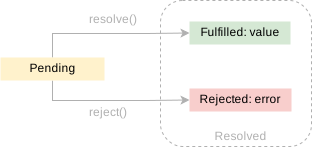
In the beginning, the state of a promise is pending, indicating that the asynchronous operation is in progress. Depending on the result of the asynchronous operation, the state changes to either fulfilled or rejected.
The fulfilled state indicates that the asynchronous operation was completed successfully:
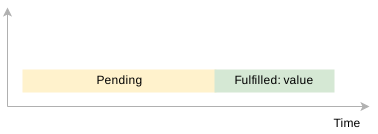
The rejected state indicates that the asynchronous operation failed.
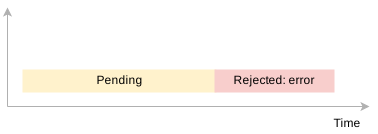
Creating a promise
To create a promise object, you use the Promise() constructor:
const promise = new Promise((resolve, reject) => {
  // contain an operation
  // ...

  // return the state
  if (success) {
    resolve(value);
  } else {
    reject(error);
  }
});Code language: JavaScript (javascript)
The promise constructor accepts a callback function that typically performs an asynchronous operation. This function is often referred to as an executor.
In turn, the executor accepts two callback functions with the name resolve and reject.
Note that the callback functions passed into the executor are resolve and reject by convention only.
If the asynchronous operation completes successfully, the executor will call the resolve() function to change the state of the promise from pending to fulfilled with a value.
In case of an error, the executor will call the reject() function to change the state of the promise from pending to rejected with the error reason.
Once a promise reaches either a fulfilled or rejected state, it stays in that state and can’t go to another state.
In other words, a promise cannot go from the fulfilled state to the rejected state and vice versa. Also, it cannot go back from the fulfilled or rejected state to the pending state.
Once a new Promise object is created, its state is pending. If a promise reaches fulfilled or rejected state, it is resolved.
Note that you will rarely create promise objects in practice. Instead, you will consume promises provided by libraries.
Consuming a Promise: then, catch, finally
1) The then() method
To get the value of a promise when it’s fulfilled, you call the then() method of the promise object. The following shows the syntax of the then() method:
promise.then(onFulfilled,onRejected);Code language: CSS (css)
The then() method accepts two callback functions: onFulfilled and onRejected.
The then() method calls the onFulfilled() with a value, if the promise is fulfilled or the onRejected() with an error if the promise is rejected.
Note that both onFulfilled and onRejected arguments are optional.
The following example shows how to use then() method of the Promise object returned by the getUsers() function:
function getUsers() {
  return new Promise((resolve, reject) => {
    setTimeout(() => {
      resolve([
        { username: 'john', email: 'john@test.com' },
        { username: 'jane', email: 'jane@test.com' },
      ]);
    }, 1000);
  });
}

function onFulfilled(users) {
  console.log(users);
}

const promise = getUsers();
promise.then(onFulfilled);Code language: JavaScript (javascript)
Output:
[
  { username: 'john', email: 'john@test.com' },
  { username: 'jane', email: 'jane@test.com' }
]Code language: JavaScript (javascript)
In this example:
First, define the
onFulfilled()function to be called when the promise is fulfilled.Second, call the
getUsers()function to get a promise object.Third, call the
then()method of the promise object and output the user list to the console.
To make the code more concise, you can use an arrow function as the argument of the then() method like this:
function getUsers() {
  return new Promise((resolve, reject) => {
    setTimeout(() => {
      resolve([
        { username: 'john', email: 'john@test.com' },
        { username: 'jane', email: 'jane@test.com' },
      ]);
    }, 1000);
  });
}

const promise = getUsers();

promise.then((users) => {
  console.log(users);
});
Code language: JavaScript (javascript)
Because the getUsers() function returns a promise object, you can chain the function call with the then() method like this:
// getUsers() function
//...

getUsers().then((users) => {
  console.log(users);
});
Code language: JavaScript (javascript)
In this example, the getUsers() function always succeeds. To simulate the error, we can use a success flag like the following:
let success = true;

function getUsers() {
  return new Promise((resolve, reject) => {
    setTimeout(() => {
      if (success) {
        resolve([
          { username: 'john', email: 'john@test.com' },
          { username: 'jane', email: 'jane@test.com' },
        ]);
      } else {
        reject('Failed to the user list');
      }
    }, 1000);
  });
}

function onFulfilled(users) {
  console.log(users);
}
function onRejected(error) {
  console.log(error);
}

const promise = getUsers();
promise.then(onFulfilled, onRejected);Code language: JavaScript (javascript)
How it works.
First, define the success variable and initialize its value to true.
If the success is true, the promise in the getUsers() function is fulfilled with a user list. Otherwise, it is rejected with an error message.
Second, define the onFulfilled and onRejected functions.
Third, get the promise from the getUsers() function and call the then() method with the onFulfilled and onRejected functions.
The following shows how to use the arrow functions as the arguments of the then() method:
// getUsers() function
// ...

const promise = getUsers();
promise.then(
  (users) => console.log,
  (error) => console.log
);Code language: JavaScript (javascript)
2) The catch() method
If you want to get the error only when the state of the promise is rejected, you can use the catch() method of the Promise object:
promise.catch(onRejected);Code language: CSS (css)
Internally, the catch() method invokes the then(undefined, onRejected) method.
The following example changes the success flag to false to simulate the error scenario:
let success = false;

function getUsers() {
  return new Promise((resolve, reject) => {
    setTimeout(() => {
      if (success) {
        resolve([
          { username: 'john', email: 'john@test.com' },
          { username: 'jane', email: 'jane@test.com' },
        ]);
      } else {
        reject('Failed to the user list');
      }
    }, 1000);
  });
}

const promise = getUsers();

promise.catch((error) => {
  console.log(error);
});Code language: JavaScript (javascript)
3) The finally() method
Sometimes, you want to execute the same piece of code whether the promise is fulfilled or rejected. For example:
const render = () => {
  //...
};

getUsers()
  .then((users) => {
    console.log(users);
    render();
  })
  .catch((error) => {
    console.log(error);
    render();
  });Code language: JavaScript (javascript)
As you can see, the render() function call is duplicated in both then() and catch() methods.
To remove this duplicate and execute the render() whether the promise is fulfilled or rejected, you use the finally() method, like this:
const render = () => {
  //...
};

getUsers()
  .then((users) => {
    console.log(users);
  })
  .catch((error) => {
    console.log(error);
  })
  .finally(() => {
    render();
  });
Code language: JavaScript (javascript)
A practical JavaScript Promise example
The following example shows how to load a JSON file from the server and display its contents on a webpage.
Suppose you have the following JSON file:
https://www.javascripttutorial.net/sample/promise/api.jsonCode language: JavaScript (javascript)
with the following contents:
{
    "message": "JavaScript Promise Demo"
}Code language: JSON / JSON with Comments (json)
The following shows the HTML page that contains a button. When you click the button, the page loads data from the JSON file and shows the message:
<!DOCTYPE html>
<html>
<head>
    <meta charset="utf-8">
    <title>JavaScript Promise Demo</title>
    <link href="css/style.css" rel="stylesheet">
</head>
<body>
    <div id="container">
        <div id="message"></div>
        <button id="btnGet">Get Message</button>
    </div>
    <script src="js/promise-demo.js">
    </script>
</body>
</html>Code language: HTML, XML (xml)
The following shows the promise-demo.js file:
function load(url) {
  return new Promise(function (resolve, reject) {
    const request = new XMLHttpRequest();
    request.onreadystatechange = function () {
      if (this.readyState === 4 && this.status == 200) {
        resolve(this.response);
      } else {
        reject(this.status);
      }
    };
    request.open('GET', url, true);
    request.send();
  });
}

const url = 'https://www.javascripttutorial.net/sample/promise/api.json';
const btn = document.querySelector('#btnGet');
const msg = document.querySelector('#message');

btn.addEventListener('click', () => {
  load(URL)
    .then((response) => {
      const result = JSON.parse(response);
      msg.innerHTML = result.message;
    })
    .catch((error) => {
      msg.innerHTML = `Error getting the message, HTTP status: ${error}`;
    });
});
Code language: JavaScript (javascript)
How it works.
First, define the load() function that uses the XMLHttpRequest object to load the JSON file from the server:
function load(url) {
  return new Promise(function (resolve, reject) {
    const request = new XMLHttpRequest();
    request.onreadystatechange = function () {
      if (this.readyState === 4 && this.status == 200) {
        resolve(this.response);
      } else {
        reject(this.status);
      }
    };
    request.open('GET', url, true);
    request.send();
  });
}Code language: JavaScript (javascript)
In the executor, we call resolve() function with the Response if the HTTP status code is 200. Otherwise, we invoke the reject() function with the HTTP status code.
Second, register the button click event listener, and call the then() method of the promise object. If the load is successful, then we show the message returned from the server. Otherwise, we show the error message with the HTTP status code.
const url = 'https://www.javascripttutorial.net/sample/promise/api.json';
const btn = document.querySelector('#btnGet');
const msg = document.querySelector('#message');

btn.addEventListener('click', () => {
  load(URL)
    .then((response) => {
      const result = JSON.parse(response);
      msg.innerHTML = result.message;
    })
    .catch((error) => {
      msg.innerHTML = `Error getting the message, HTTP status: ${error}`;
    });
});
Code language: JavaScript (javascript)
Summary
A promise is an object that encapsulates the result of an asynchronous operation.
A promise starts in the pending state and ends in either a fulfilled state or a rejected state.
Use
then()method to schedule a callback to be executed when the promise is fulfilled, andcatch()method to schedule a callback to be invoked when the promise is rejected.Place the code that you want to execute in the
finally()method whether the promise is fulfilled or rejected.
JavaScript async/await
Summary: in this tutorial, you will learn how to write asynchronous code using JavaScript async/ await keywords.
Note that to understand how the async / await works, you need to know how promises work.
Introduction to JavaScript async / await keywords
In the past, to handle asynchronous operations, you used the callback functions. However, nesting many callback functions can make your code more difficult to maintain, resulting in a notorious issue known as callback hell.
Suppose that you need to perform three asynchronous operations in the following sequence:
Select a user from the database.
Get the user’s services from an API.
Calculate the service cost based on the services from the server.
The following functions illustrate the three tasks. Note that we use the setTimeout() function to simulate the asynchronous operation.
function getUser(userId, callback) {
    console.log('Get user from the database.');
    setTimeout(() => {
        callback({
            userId: userId,
            username: 'john'
        });
    }, 1000);
}

function getServices(user, callback) {
    console.log(`Get services of  ${user.username} from the API.`);
    setTimeout(() => {
        callback(['Email', 'VPN', 'CDN']);
    }, 2 * 1000);
}

function getServiceCost(services, callback) {
    console.log(`Calculate service costs of ${services}.`);
    setTimeout(() => {
        callback(services.length * 100);
    }, 3 * 1000);
}Code language: JavaScript (javascript)
The following shows the nested callback functions:
getUser(100, (user) => {
    getServices(user, (services) => {
        getServiceCost(services, (cost) => {
            console.log(`The service cost is ${cost}`);
        });
    });
});Code language: JavaScript (javascript)
Output:
Get user from the database.
Get services of  john from the API.
Calculate service costs of Email,VPN,CDN.
The service cost is 300Code language: JavaScript (javascript)
To avoid this callback hell issue, ES6 introduced the promises that allow you to write asynchronous code in more manageable ways.
First, you need to return a Promise in each function:
function getUser(userId) {
    return new Promise((resolve, reject) => {
        console.log('Get user from the database.');
        setTimeout(() => {
            resolve({
                userId: userId,
                username: 'john'
            });
        }, 1000);
    })
}

function getServices(user) {
    return new Promise((resolve, reject) => {
        console.log(`Get services of  ${user.username} from the API.`);
        setTimeout(() => {
            resolve(['Email', 'VPN', 'CDN']);
        }, 2 * 1000);
    });
}

function getServiceCost(services) {
    return new Promise((resolve, reject) => {
        console.log(`Calculate service costs of ${services}.`);
        setTimeout(() => {
            resolve(services.length * 100);
        }, 3 * 1000);
    });
}Code language: JavaScript (javascript)
Then, you chain the promises:
getUser(100)
    .then(getServices)
    .then(getServiceCost)
    .then(console.log);Code language: JavaScript (javascript)
ES2017 introduced the async/await keywords that build on top of promises, allowing you to write asynchronous code that looks more like synchronous code and is more readable. Technically speaking, the async / await is syntactic sugar for promises.
If a function returns a Promise, you can place the await keyword in front of the function call, like this:
let result = await f();Code language: JavaScript (javascript)
The await will wait for the Promise returned from the f() to settle. The await keyword can be used only inside the async functions.
The following defines an async function that calls the three asynchronous operations in sequence:
async function showServiceCost() {
    let user = await getUser(100);
    let services = await getServices(user);
    let cost = await getServiceCost(services);
    console.log(`The service cost is ${cost}`);
}

showServiceCost();Code language: JavaScript (javascript)
As you can see, the asynchronous code now looks like the synchronous code.
Let’s dive into the async / await keywords.
The async keyword
The async keyword allows you to define a function that handles asynchronous operations.
To define an async function, you place the async keyword in front of the function keyword as follows:
async function sayHi() {
    return 'Hi';
}Code language: JavaScript (javascript)
Asynchronous functions execute asynchronously via the event loop. It always returns a Promise.
In this example, because the sayHi() function returns a Promise, you can consume it, like this:
sayHi().then(console.log);Code language: JavaScript (javascript)
You can also explicitly return a Promise from the sayHi() function as shown in the following code:
async function sayHi() {
    return Promise.resolve('Hi');
}Code language: JavaScript (javascript)
The effect is the same.
Besides the regular functions, you can use the async keyword in the function expressions:
let sayHi = async function () {
    return 'Hi';
}Code language: JavaScript (javascript)
let sayHi = async () => 'Hi';Code language: JavaScript (javascript)
and methods of classes:
class Greeter {
    async sayHi() {
        return 'Hi';
    }
}Code language: JavaScript (javascript)
The await keyword
You use the await keyword to wait for a Promise to settle either in a resolved or rejected state. You can use the await keyword only inside an async function:
async function display() {
    let result = await sayHi();
    console.log(result);
}Code language: JavaScript (javascript)
In this example, the await keyword instructs the JavaScript engine to wait for the sayHi() function to complete before displaying the message.
Note that if you use the await operator outside of an async function, you will get an error.
Error handling
If a promise resolves, the await promise returns the result. However, when the promise is rejected, the await promise will throw an error as if there were a throw statement.
The following code:
async function getUser(userId) {
     await Promise.reject(new Error('Invalid User Id'));
}Code language: JavaScript (javascript)
… is the same as this:
async function getUser(userId) {
    throw new Error('Invalid User Id');
}Code language: JavaScript (javascript)
In a real scenario, it will take a while for the promise to throw an error.
You can catch the error by using the try...catch statement, the same way as a regular throw statement:
async function getUser(userId) {
    try {
       const user = await Promise.reject(new Error('Invalid User Id'));
    } catch(error) {
       console.log(error);
    }
}Code language: JavaScript (javascript)
It’s possible to catch errors caused by one or more await promise‘s:
async function showServiceCost() {
    try {
       let user = await getUser(100);
       let services = await getServices(user);
       let cost = await getServiceCost(services);
       console.log(`The service cost is ${cost}`);
    } catch(error) {
       console.log(error);
    }
}Code language: JavaScript (javascript)
In this tutorial, you have learned how to use the JavaScript async / await keyword to write asynchronous code looks like synchronous code.