Xpath for Automation Tester wrt Selenium
Link for practice Xpath Below
Click on Link
Q1. What is XPath? Types?
XPath is a query language to locate nodes in XML/HTML.
Types: Absolute (/html/body/div[2]/a) and Relative (//a[@id='login']). Prefer relative in tests.
Q2. CSS vs XPath?
Speed: CSS often faster.
Features: XPath supports axes, text(), traversal upwards (to parent/ancestor); CSS cannot move up.
Readability: CSS simpler; XPath more powerful for complex DOMs.
Q3. XPath versions used in Selenium?
Selenium relies on browser engines (mostly XPath 1.0). Don’t expect 2.0/3.0 functions.
Q4. Indexing start?
XPath indexes are 1-based: //li[1] is the first <li>.
Q5. What is a predicate?
Filter in square brackets: //input[@type='email'][@required].
Frequently used XPath patterns
Attributes
Exact match:
//input[@name='q']Multiple attrs:
//button[@type='submit' and @disabled]Contains:
//div[contains(@class,'error')]Starts with:
//a[starts-with(@id,'user_')]Ends with (simulate):
//img[substring(@src, string-length(@src)-3) = '.png']
Text
Exact:
//button[text()='Login']Contains text:
//h1[contains(normalize-space(.),'Welcome')]Case-insensitive (simulate):
//a[contains(translate(., 'ABCDEFGHIJKLMNOPQRSTUVWXYZ','abcdefghijklmnopqrstuvwxyz'), 'privacy')]
Hierarchy & position
Child:
//ul[@id='menu']/li/aAny descendant:
//form//input[@type='password']Nth item:
//ul[@id='menu']/li[3]Last item:
//table//tr[last()]First two:
//div[@role='row'][position()<=2]
Axes (traversal)
Parent:
//span[@class='price']/parent::divAncestor:
//input[@id='email']/ancestor::formFollowing-sibling:
//label[.='Email']/following-sibling::input[1]Preceding-sibling:
//td[.='Total']/preceding-sibling::td[1]Descendant:
//section[@id='cart']/descendant::button[@type='submit']Self:
//a[@data-test='x']/self::a
Unions & grouping
Either/or:
//input[@type='email'] | //input[@name='email']Group conditions:
//a[(contains(@class,'btn') or @role='button') and not(@disabled)]
Dynamic IDs & classes
Stable part:
//*[contains(@id,'react-select') and contains(@id,'input')]CSS-like class match (avoid partial class collisions):
//*[contains(concat(' ', normalize-space(@class), ' '), ' btn-primary ')]
SVG/Canvas
- SVG tag names need
local-name()in HTML DOM:
//*[local-name()='svg']//*[local-name()='path']
Shadow DOM (important!)
XPath cannot pierce shadow DOM. Use Selenium’s JS/shadow APIs instead.
IFrames
Switch to frame first; XPath runs inside the current frame context.
Namespaces (XML apps)
Use local-name() if prefixes vary: //*[local-name()='book'].
Escaping quotes in string literals
Use concat() when your string has both quote types://a[@title=concat('He said "', "Hi", '" today')]
Real-world Selenium (Java) snippets
// Single element
WebElement loginBtn = driver.findElement(By.xpath("//button[normalize-space()='Login']"));

// List + filter
List<WebElement> rows = driver.findElements(By.xpath("//table[@id='orders']//tr[position()>1]"));

// Robust class match
WebElement cta = driver.findElement(By.xpath("//*[contains(concat(' ', normalize-space(@class), ' '), ' btn-primary ')]"));

// Neighbor strategy
WebElement input = driver.findElement(By.xpath("//label[normalize-space()='Email']/following-sibling::input[1]"));

// Wait for clickable
WebDriverWait wait = new WebDriverWait(driver, Duration.ofSeconds(10));
WebElement save = wait.until(ExpectedConditions.elementToBeClickable(
    By.xpath("//button[.='Save' or .='Save changes']")));
30+ interview Qs with crisp answers
Absolute vs Relative XPath?
Absolute starts at root/; fragile. Relative starts with//; resilient.When to use contains() vs starts-with()?
Usecontains()for mid-string stability;starts-with()when prefix is stable (e.g., generated IDs).How do you locate by visible text ignoring extra spaces?
//tag[normalize-space(.)='Text'].How to select the Nth occurrence of an element?
(//button[@type='button'])[3].Difference between
.andtext()?
.= string value of the node (all descendant text);text()= direct text node child(ren).Select element by exact class token?
//*[contains(concat(' ', normalize-space(@class), ' '), ' chip ')].Find sibling cell based on header text in a table row.
//tr[td[normalize-space()='Email']]/td[2].Get row where a column matches and click its button.
//tr[td[normalize-space()='INV-123']]/td//button[normalize-space()='Pay'].Pick last element
(//div[@role='option'])[last()].Find element by aria attributes (accessible apps).
//*[@aria-label='Search']or//*[@role='button' and @aria-pressed='true'].Case-insensitive text search
Usetranslate()trick (see above).Element inside iframe?
driver.switchTo().frame(WebElement frame)then locate; switch back.Why avoid brittle XPaths like
//div[3]/div[2]/span?
Index-only paths break with DOM shifts; prefer attribute/text anchors.How to go from child to ancestor?
//span[@data-id='p']/ancestor::div[@role='row'].Match elements with dynamic trailing numbers in id
//input[starts-with(@id,'user_')].Find label’s input when
forandidaren’t usable//label[.='Password']/following::input[1](scoped with a parent if possible).Select node by partial attribute and text together
//a[contains(@href,'terms') and contains(.,'Terms')].Click nth visible button when some are hidden
Combine visibility check via WebDriver (not XPath) or filter with attributes likenot(contains(@style,'display:none')).Why
normalize-space()is useful?
Trims and condenses whitespace; stabilizes text matches.How to exclude nodes with
not()?//button[not(@disabled)].Union usage example
//input[@type='email'] | //input[@name='email'].How to handle SVG icons?
Uselocal-name()(see pattern above).Select element by data- attributes*
//*[@data-testid='login']— highly recommended for stable locators.What if attributes are completely dynamic?
Anchor to nearby stable text and traverse with axes.Difference:
//div[@id='x']//avs//div[@id='x']/descendant::a
Equivalent; the first is shorthand fordescendant::.Pick second-to-last item
(//li)[last()-1].Click button following a specific heading
//h2[normalize-space()='Profile']/following::button[normalize-space()='Edit'][1].Locate input whose placeholder changes slightly
//input[contains(@placeholder,'search')].Is
//*[@id='x']bad?
Not inherently, but preferBy.id("x")if you have exact id—faster and clearer.Why prefer test IDs over XPath?
Stability. Requestdata-testid/data-qahooks from devs.How to find element by visible label when DOM nests them?
//label[normalize-space()='Country']//following::select[1](scope within a form/section).Get count of elements (for validation)
Use WebDriver list size; XPathcount()exists but not via By.xpath directly.Select link whose href ends with
.pdf//a[substring(@href, string-length(@href)-3) = '.pdf'].
Debugging & best practices
Prefer id/name/accessibility locators first; use XPath when necessary.
Add scoping to reduce ambiguity:
//form[@id='login']//input[@type='password'].Avoid fragile index-only paths; use attributes + text + axes.
Use explicit waits for dynamic UIs.
For React/Angular, ask for data-testid/data-qa hooks.
Avoid crossing shadow DOM with XPath—use shadow utilities.
Mini practice (try mentally)
Select the price cell in the row where Product = “Laptop”.
//tr[td[normalize-space()='Laptop']]/td[@data-col='price' or position()=3]Click the toggle right next to “Email Notifications”.
//span[normalize-space()='Email Notifications']/following-sibling::input[@type='checkbox']Pick the “Delete” button inside the modal titled “Confirm”.
//div[@role='dialog' and .//h2[normalize-space()='Confirm']]//button[normalize-space()='Delete']
Example of Dynamic Element
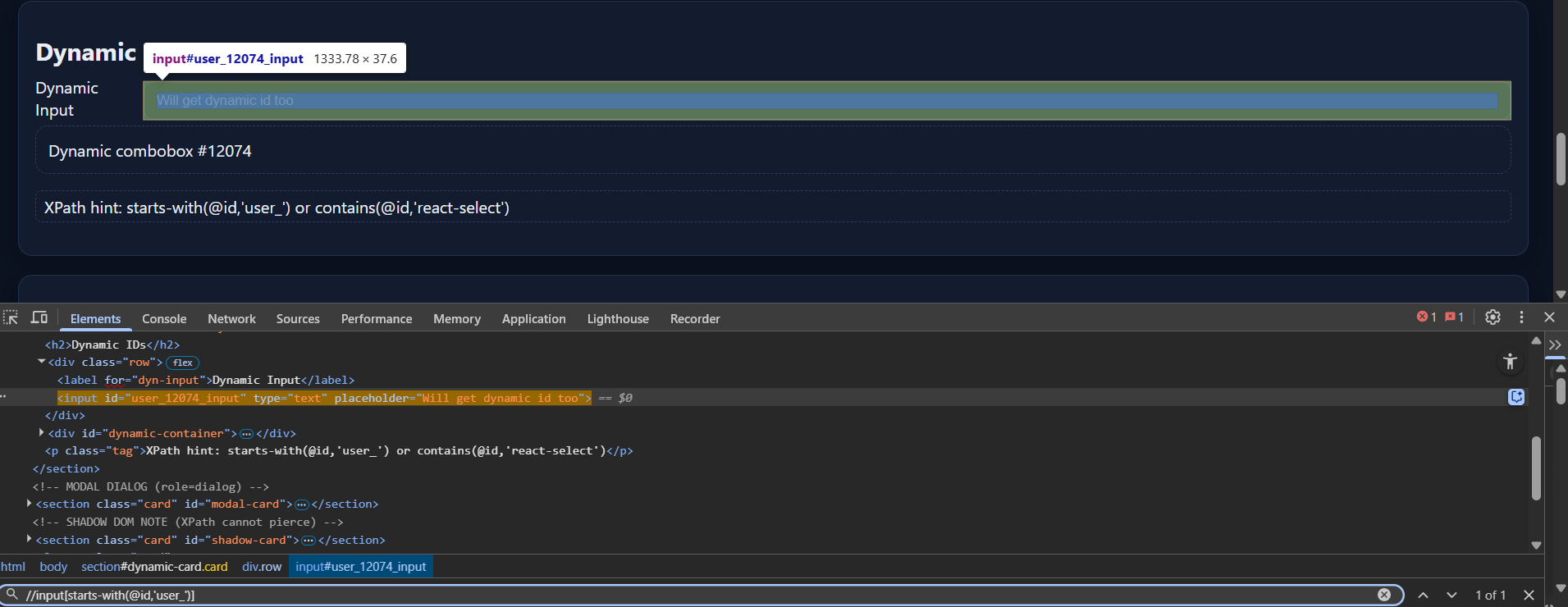
Q- Write a Xpath to find the search-text field by using only id-attribute ?
Here we use starts-with() and by using id-attribute and the attribute value is start with user_ .
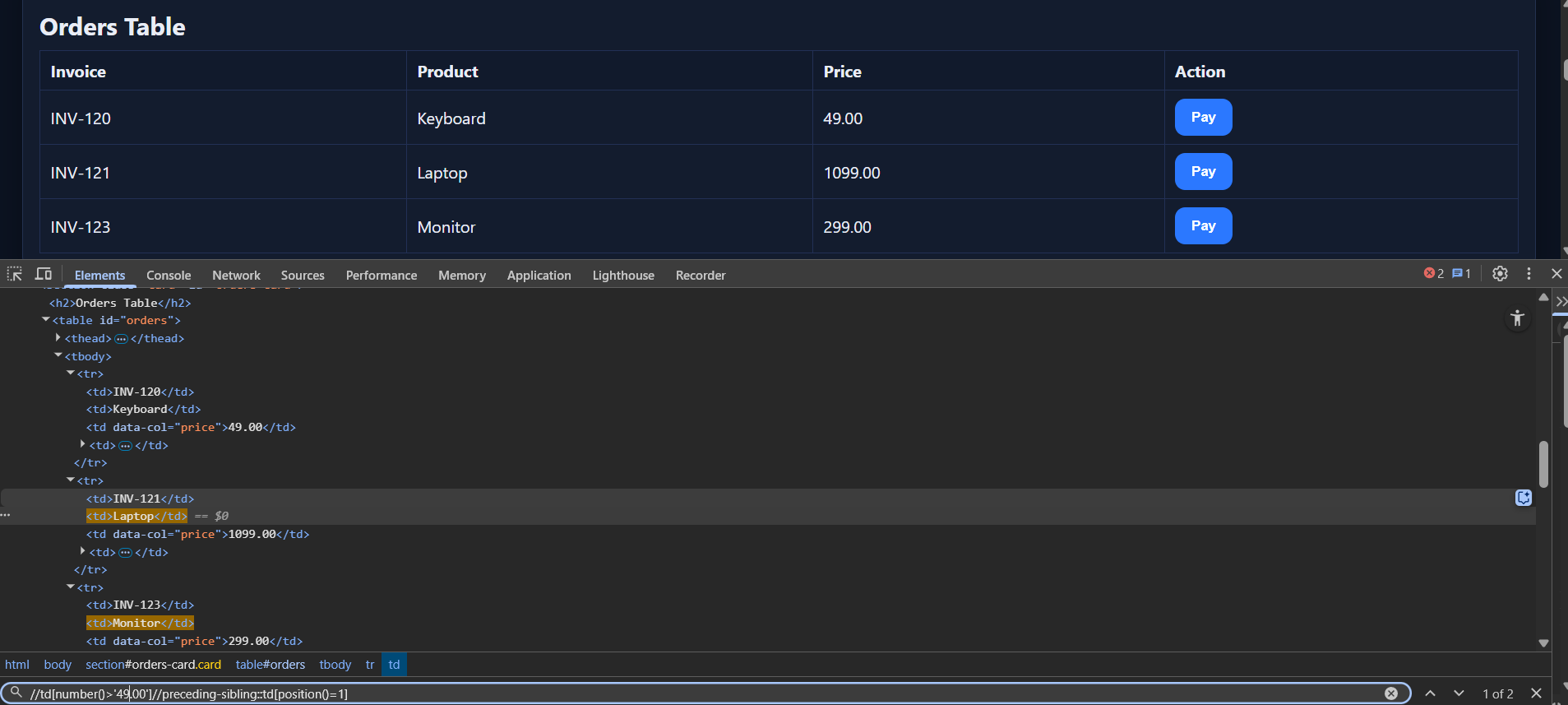
Q- Write a XPath to find the Products which price is graeter than 49.00.
Here we use number() to compare the number text which available inside the <td> tag.
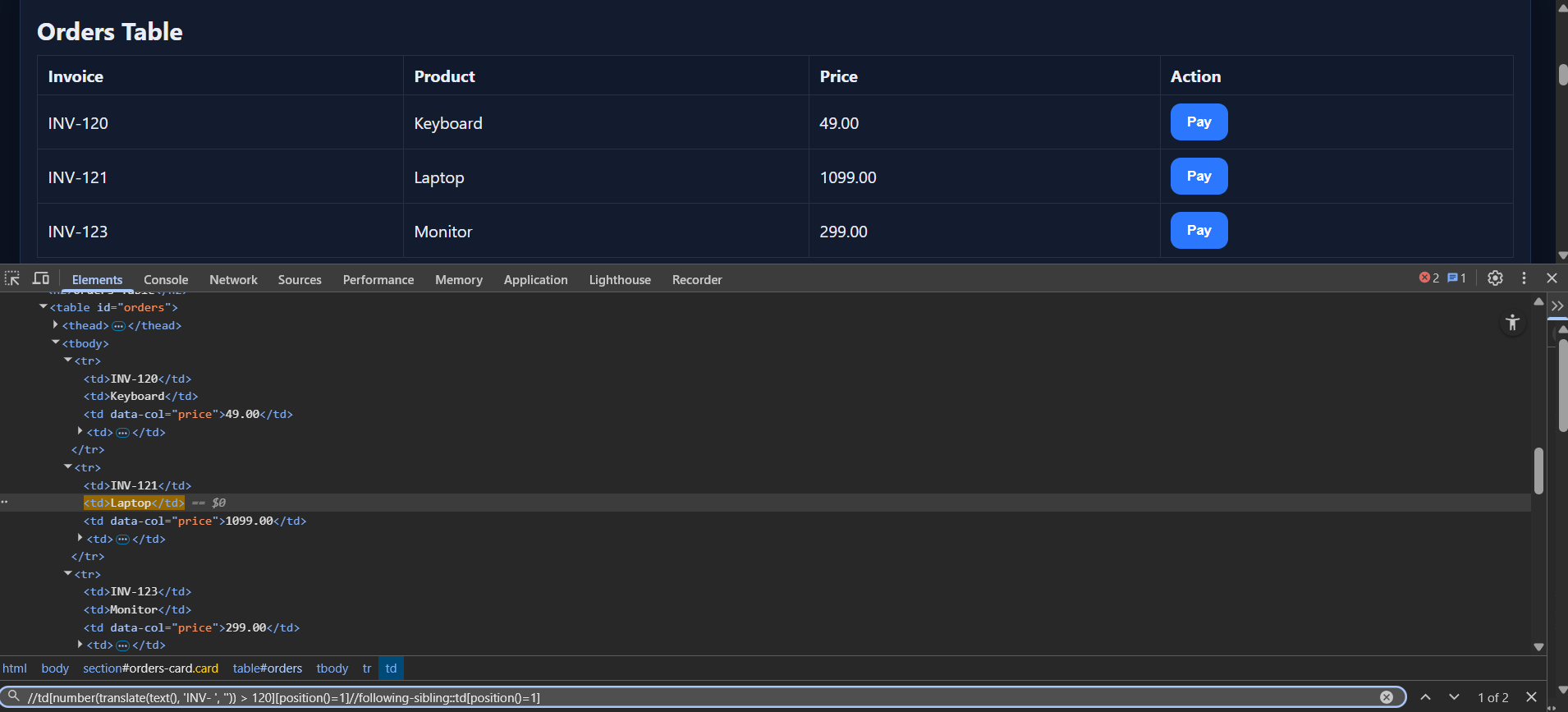
Q- Write a Xpath to find the product which invoice sl no is greater than INV-120.
Here we use number() to compare the number text which available inside the <td> tag but the text also contain String type text so we use translate() to remove the selected text.